Windows

For Intel / AMD PCs · 64-bit
Download ↓ schober24.comREMOTE SUPPORTOur company ↗
schober24.com · AD-HOC SUPPORT
For a one-off remote support session arranged with you: download our RemoteSupportClient and we will guide you through the next steps.
WE WILL GUIDE YOU
First, choose your device's operating system.
Select the matching logo to see your instructions below.
Contact us before running a blocked file. We will help you check it. Administrative tasks may require an additional confirmation on your computer.
Alternatively, use the unmodified original client. Its connection settings are stored in the long file name – please do not rename it. Windows may still display a security prompt.
The installer is not yet signed/notarized by Apple. If macOS blocks it, contact us for help with setup.
You may need to mark the script as executable in its file properties. Some desktops require additional libraries or screen-sharing permissions. Contact us if it does not start.
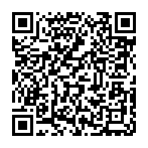
rustdesk.schober24.comsetvIX2xLv1jK+sJ6U4LBofRguXEklv82IuHCkHGxTk=Permission names vary by manufacturer. Some devices and protected apps restrict remote control.
Find your ID under Your Desktop on the left of RustDesk. Tell us this number over the phone.
Leave Control Remote Desktop on the right empty; that field is for controlling another device.
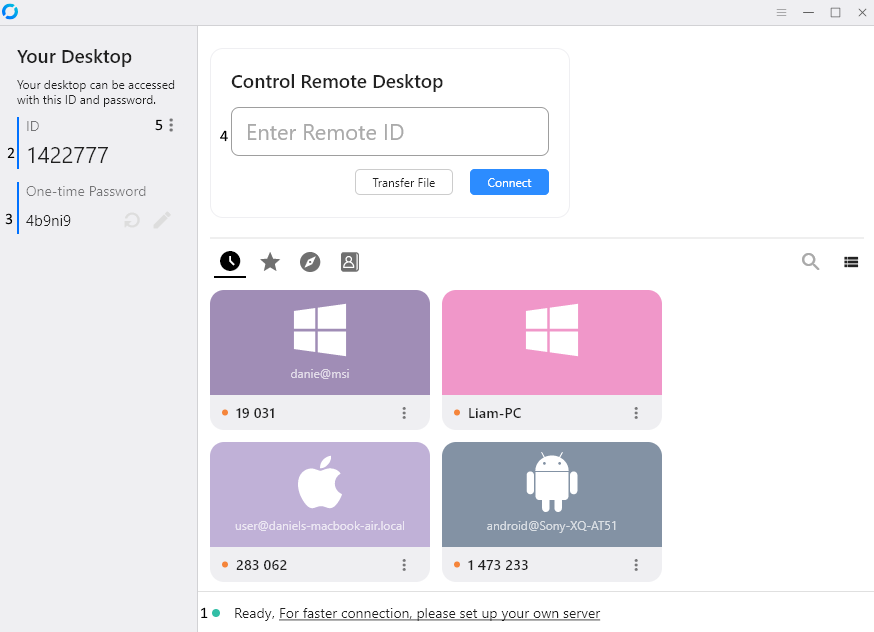 ← Find your ID hereEnlarge screenshot ↗
Check that RustDesk is open and ready. If it asks for a one-time password, share that only with our support team during the agreed call. On Macs, grant screen-sharing permissions first.
Please stay at your device for any questions. You can end the connection at any time.
DIRECT DOWNLOADS
Download the client or copy the link. No customer account is required.
For Intel / AMD PCs · 64-bit
Download ↓For Windows devices with an ARM processor
Download ↓
For M1, M2, M3 and newer
Download ↓For Macs with an Intel processor
Download ↓
For Intel / AMD
Download ↓For ARM processors
Download ↓
Phones & tablets · Android 6 or later
Signed RustDesk app. One-time server setup required.
Android guide →Download ↓REMOTE SUPPORT YOU CAN TRUST
We help you on your screen. Stay at your device and ask us questions at any time.
Downloading alone does not start remote access. Open the app for your agreed session, then accept our request or share the one-time password displayed in the app.
During normal screen sharing you can follow our work on your screen. With your permission, we can use the mouse and keyboard. Ask us to explain or pause at any time.
Select Disconnect in RustDesk to end the current session immediately. If necessary, you can also disconnect your device from the internet.
These public downloads are for ad-hoc support: help with a specific issue that we start and finish together. For ongoing managed support, we use MeshCentral under a separate agreement.
Downloading RemoteSupportClient does not create a support contract or install MeshCentral. RustDesk's technical access capabilities still depend on its settings. See below for how to stop access completely.
A download and a saved device ID alone do not grant access. RustDesk also supports password-based and unattended access. Depending on the settings, a known password that is still valid may allow another connection without a further confirmation.
Our public ad-hoc downloads do not set a permanent remote-access password. Existing RustDesk settings may remain in effect. If you have used RustDesk before, we can review those settings with you. For access only on request, use manual approval of incoming connections.
You can uninstall the application if you no longer need it. On a Mac, you can also revoke screen-recording and control permissions in System Settings.
When you share your screen, we can see personal information displayed on it. Remote-control permission allows us to operate programs and make changes. File transfer may also be available, depending on the permissions granted.
Close private documents, emails and sensitive windows beforehand. Enter personal passwords yourself and ask us to pause sharing when needed. Stay at your device during the session.
No. We need your RustDesk ID and, if required, the app's one-time password. Personal account or banking passwords are not needed. If a task requires administrator approval, confirm it yourself on your device whenever possible.
Start remote support only when you expect contact from schober24.com or contacted us yourself. Do not give your ID or one-time password to unknown callers. If unsure, reject the request and call us back using a phone number you already trust.